
Get Started with ClipCred
Follow these simple steps to start collecting authentic video testimonials from your customers
 Install on Shopify
 Click the button below to visit the ClipCred app page on the Shopify App Store. Click "Add app" to install it on your store.
Install ClipCred on Shopify Note: You'll need to grant ClipCred permission to access your orders, customers, and discount codes. This allows the app to automatically send testimonial requests and manage discount rewards.
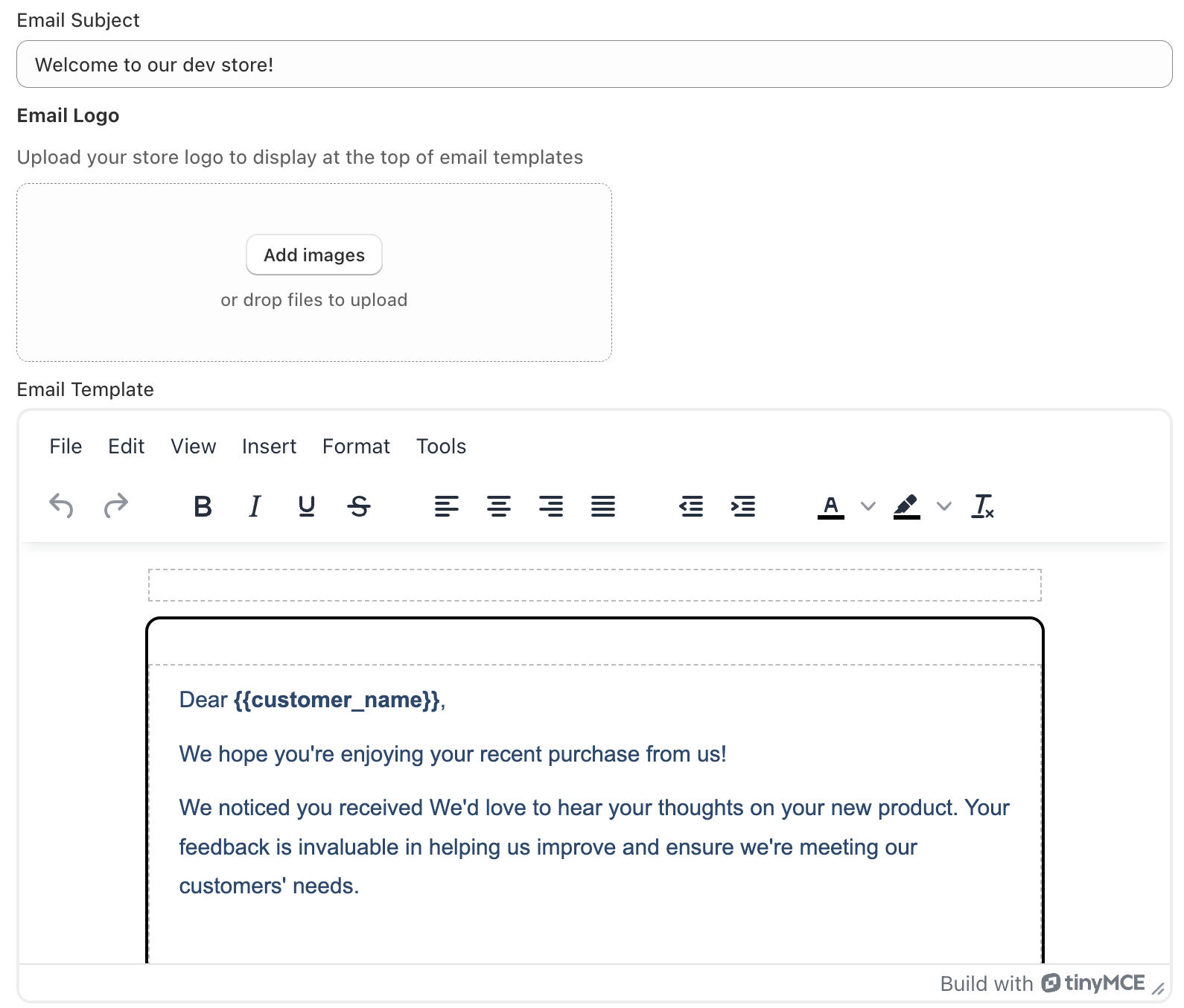
Email Customization
- Set your sender name and email address
- Customize the subject line
- Write a personalized email body
- Use template variables like {{customer_name}} and {{testimonial_link}}
Store Branding
- Upload your store logo
- Logo appears in testimonial request emails
- Helps customers recognize your brand
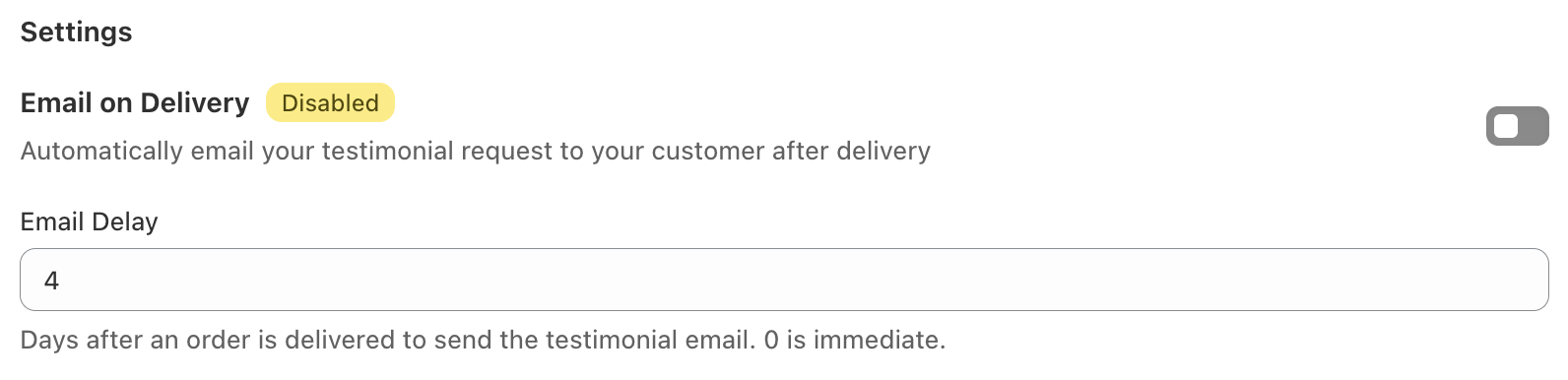
Email Delay Option
Set how many days to wait after order delivery before sending the testimonial request email. This gives customers time to use and experience your product.
- Wait 1-7 days after delivery (recommended)
- Gives customers time to try your product
- Results in more authentic testimonials
Send on Delivery
Send the testimonial request email immediately when an order is marked as Delivered in Shopify.
- Instant delivery after order fulfillment
- Great for digital products or services
- You can always send manually later
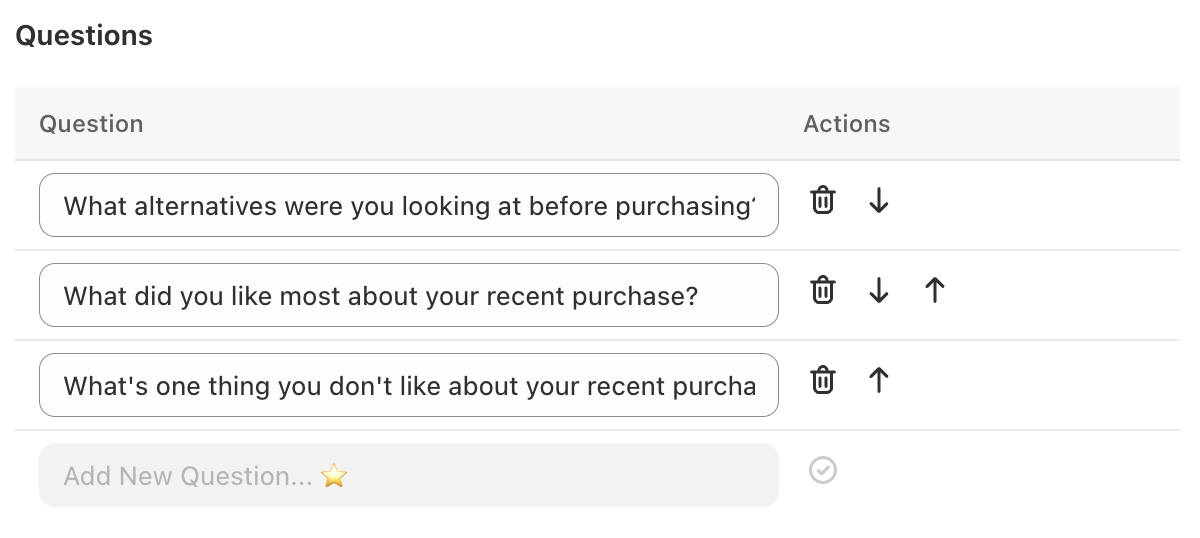
Your customers will swipe through these questions as they record their video testimonial. Create questions that will help you get valuable feedback and authentic reviews.
Question Tips
- Keep questions short and clear
- Ask about specific product features
- Encourage storytelling
- Free plan: 1 question | Paid plan: up to 3 questions
Example Questions
"What do you love most about this product?"
"How has this product improved your daily routine?"
"Would you recommend this to a friend? Why?"
Incentivize customers to leave video testimonials by offering them a discount code. This is optional but highly recommended to increase submission rates.
Setup Steps
- Create a discount code in your Shopify admin
- Configure the discount in ClipCred settings
- Customers receive the code after submission
- Track redemption rates in your dashboard
Best Practices
- Use a meaningful discount (10-20% works well)
- Set expiration dates to create urgency
- Track which codes drive repeat purchases

Note: Discount codes are only available on the paid plan ($12/month). Free plan users can still collect testimonials without offering discounts.
Before going live, preview how the recording experience will look and feel for your customers. This helps ensure everything is configured correctly.
What to Check
- Questions display correctly
- Recording works smoothly
- Video uploads successfully
- Thank you message appears after submission
Try the Preview Experience
See exactly what your customers will see when they record their testimonial
Preview RecorderManaging Your Testimonials
Once testimonials start coming in, here's how to manage and use them
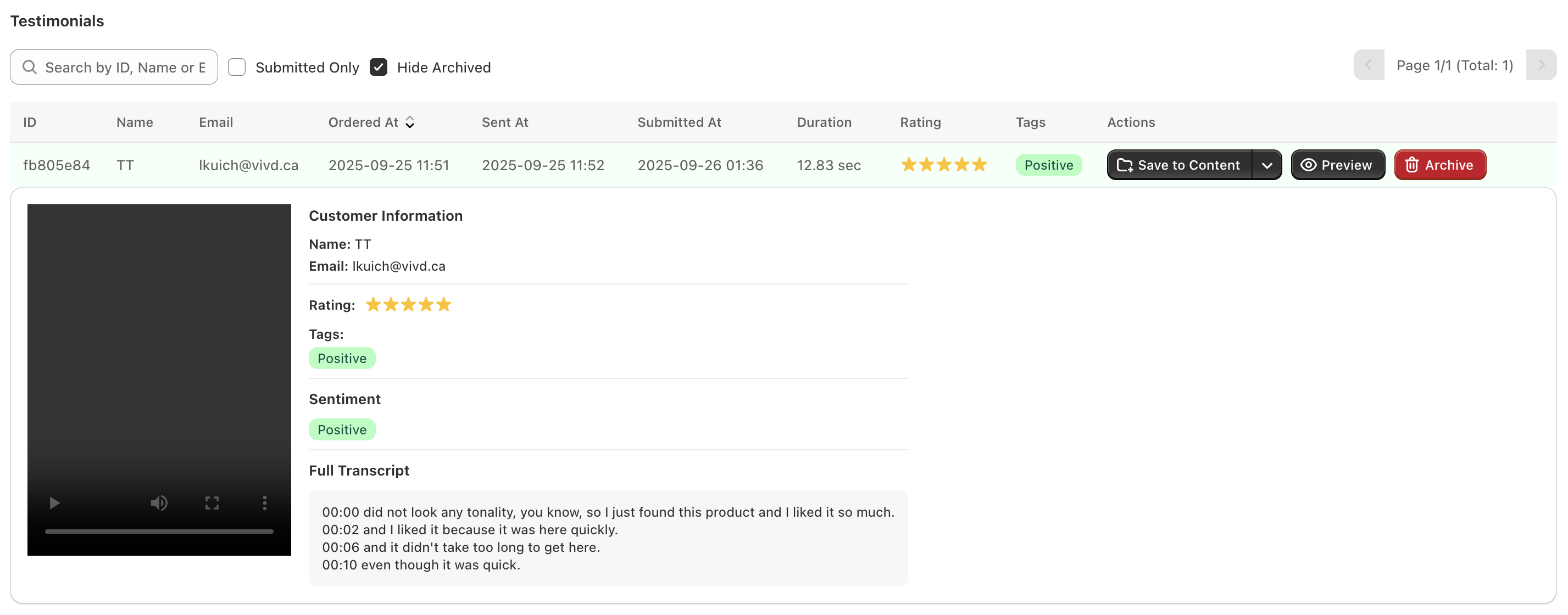
What You'll See
- Customer email address
- Star rating
- AI-generated transcription
- AI sentiment tagging
- Submission date and video length
Available Actions
- Preview: Watch the video testimonial
- Download: Save the raw video file
- Copy to Shopify: Add to your Shopify Files library
Preview Videos
Watch testimonials directly in your dashboard to review content before publishing
AI Insights
Get automatic transcriptions and smart tags to help organize and find testimonials
Shopify Integration
Easily copy videos to your Shopify Files library for use in your storefront
Ready to Start Collecting Testimonials?
Follow the steps above to get ClipCred set up on your Shopify store. If you need help, our support team is here for you.
 Install on Shopify